Getting Started with ChatGPT’s Advanced Voice Mode for Educators
Introduction
Teaching is dynamic, fast-paced, and deeply human. Whether you’re managing classrooms, communicating with families, or preparing lessons on the go, typing everything into a screen isn’t always practical.
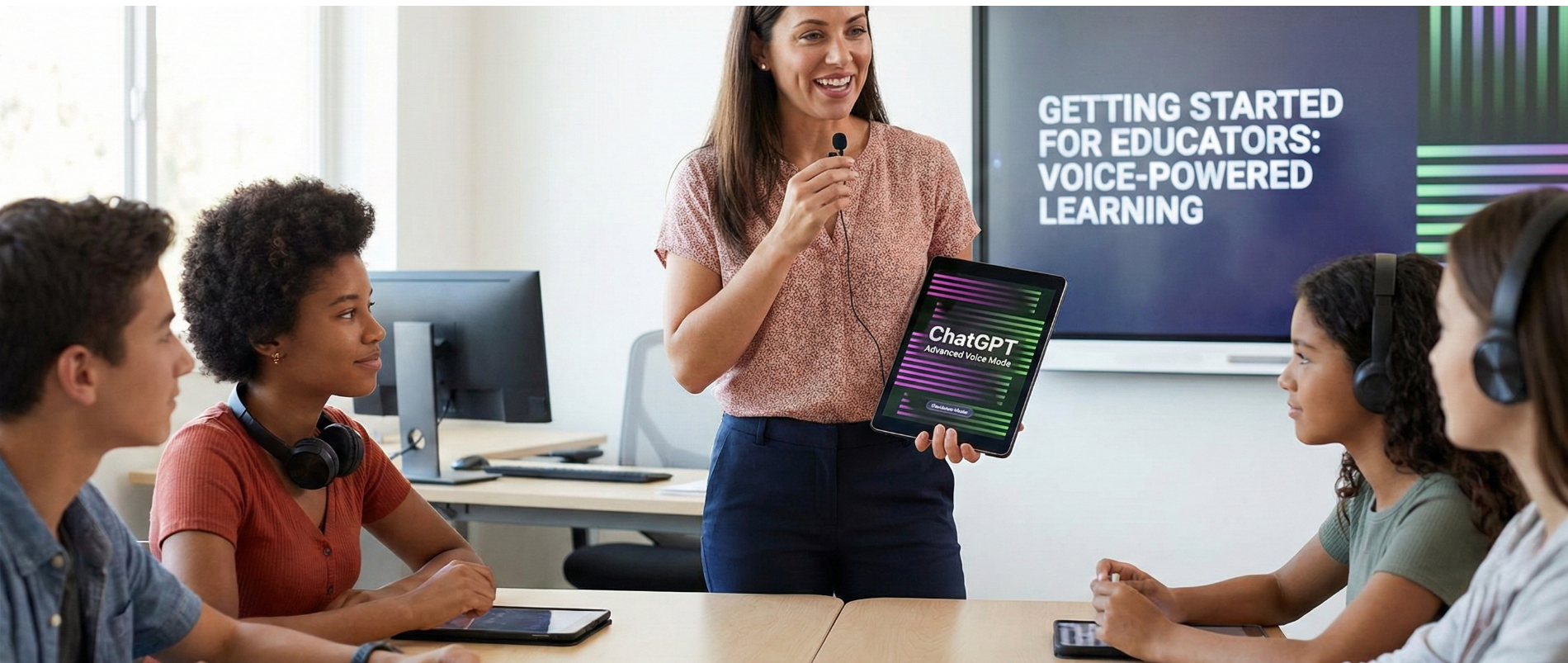
ChatGPT’s Advanced Voice Mode (available in ChatGPT Edu) allows educators to speak naturally with ChatGPT and receive spoken, conversational responses—reducing typing, improving accessibility, and supporting multitasking.
For K–12 and higher education environments, Voice Mode becomes a powerful hands-free assistant for planning, reflection, communication, and real-time problem-solving.
Important Note
This guide applies specifically to ChatGPT Edu, OpenAI’s licensed solution for schools and universities.
Data from ChatGPT Edu is never used to train OpenAI models, ensuring privacy and institutional compliance.
What Is Advanced Voice Mode?
Advanced Voice Mode enables two-way spoken conversations with ChatGPT. Unlike simple dictation, this mode allows ChatGPT to:
-
Listen
-
Respond verbally
-
Maintain conversational context
-
Support natural back-and-forth dialogue
This makes it especially useful in teaching environments where speed, accessibility, and mobility matter.
Why Voice Mode Matters in Education
Voice Mode supports educators in ways traditional interfaces can’t:
-
Reduces screen fatigue and typing
-
Enables hands-free use during busy moments
-
Improves accessibility for diverse learning needs
-
Supports multilingual communication
-
Helps educators think aloud, reflect, and iterate in real time
It’s not just a convenience—it’s a workflow upgrade.
Setting Up Advanced Voice Mode
On Mobile (iOS & Android)
-
Download or update the ChatGPT app from:
-
Apple App Store (iOS)
-
Google Play Store (Android)
-
-
Open the app and tap the black Voice icon in the bottom-right corner.
Note:
-
The small microphone icon is for dictation only.
-
The black Voice icon enables a full spoken conversation.
-
-
Allow microphone access when prompted.
-
Select your preferred voice (e.g., Cove, Maple, Spruce).
You can change voices later in Settings. -
Start speaking naturally.
A blue orb will appear, indicating an active voice session.
Controls
-
Mute / Unmute → Mic icon (bottom-left)
-
End Session → Exit icon (bottom-right)
On Desktop (Web & macOS App)
-
Sign in at chat.openai.com or open the ChatGPT desktop app (macOS).
-
Click the black Voice icon in the bottom-right corner.
-
Allow microphone permissions.
-
Begin speaking naturally—the blue orb confirms the session.
Controls
-
Mute / Unmute → Mic icon
-
End Session → Exit icon
Voice Mode works well during lesson prep, meetings, or while reviewing materials hands-free.
Classroom-Ready Use Cases for Educators
Brainstorm While Commuting
“Help me brainstorm engaging project ideas for a student-led garden initiative.”
Real-Time Translation for Families
“Translate this parent update from English to Spanish and keep the tone warm.”
Substitute Prep & Catch-Up
“I uploaded yesterday’s lesson notes. Summarize key points so I’m ready for class.”
Student Reflection & Behavior Coaching
“Guide a 4th grader through reflection: What happened? How did you feel? What could you try next time?”
Lesson Planning on the Fly
“Give me three hands-on ways to teach fractions using food or classroom materials.”
Accessibility Support
“Which Google Docs tools support text-to-speech for students with reading challenges?”
Teacher Coaching Practice
“Help me rehearse constructive feedback for a colleague in a supportive tone.”
Staff Meeting Preparation
“Listen to my presentation outline and suggest clearer phrasing and pacing.”
Quick School Communication
“Draft a polite message to maintenance about a leaking faucet in Room 212.”
Emotional Support Language
“Help me explain today’s fire drill calmly to kindergarten students.”
Best Practices for Educators Using Voice Mode
-
Speak clearly and naturally—no need for special phrasing
-
Ask follow-up questions to refine responses
-
Use Voice Mode for thinking, planning, and reflection, not just output
-
Combine Voice Mode with document uploads for richer context
-
Always review outputs before sharing with students or families
Accessibility & Inclusion Benefits
Advanced Voice Mode supports:
-
Educators with mobility or typing limitations
-
Multilingual classrooms
-
Neurodiverse learners
-
Hands-free teaching environments
-
Inclusive communication practices
This makes AI support more equitable and human-centered in education.
Why This Matters for Schools
Voice Mode helps schools:
-
Reduce teacher workload and burnout
-
Improve communication with families
-
Support inclusive learning environments
-
Encourage responsible AI use aligned with policy
-
Integrate AI naturally into daily teaching practice
It enables educators to use their voice—literally and professionally—more effectively.
Conclusion
Teaching is about connection, clarity, and care—not constant typing.
With ChatGPT’s Advanced Voice Mode in ChatGPT Edu, educators gain a hands-free, conversational assistant that keeps up with the pace of real classrooms. From lesson planning and translation to reflection and communication, Voice Mode helps you work smarter while staying human.
Your voice matters. Now your AI can listen—and respond—in real time.